help
Subscribing to a squad calendar

Andy Chadbourne
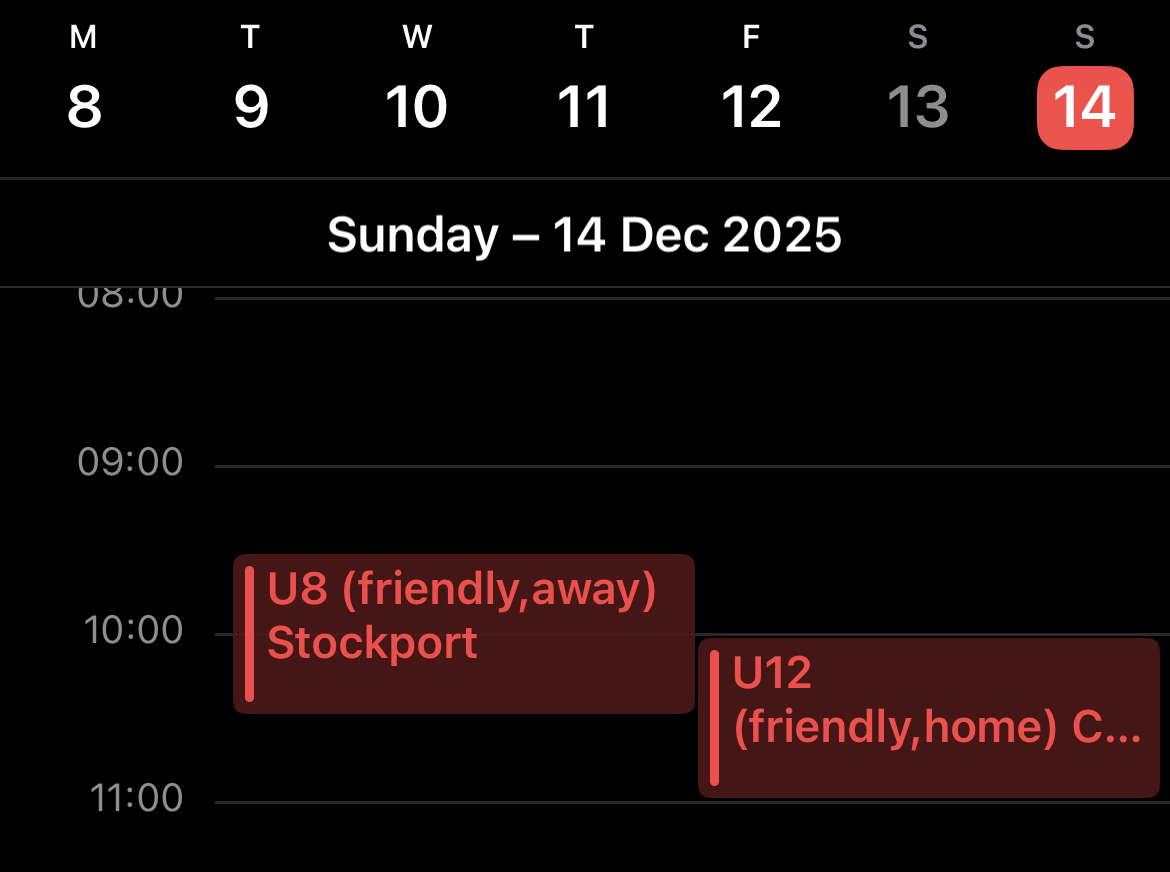
Together with using the Jugld app to view fixtures, you can additionally subscribe to fixtures using your regular calendar on your laptop or phone. These events will auto-update whenever details change, providing a simple way to see when fixtures are being played, who against, and where abouts.
iPhone (iOS 26 or iPadOS 26 or later)
- In Calendar, tap the Calendars button.
- Tap Add Calendar, then tap Add Subscription Calendar.
- Enter the calendar’s web address, then tap Find.
- Enter a title for the calendar and choose a colour to help you identify it on your calendar.
- Next to Account, choose iCloud.
- Tap the Done button.
iPhone (iOS 18 or iPadOS 18 or earlier)
- In Calendar, tap Calendars at the bottom of the screen.
- Tap Add Calendar, then tap Add Subscription Calendar.
- Enter the calendar’s web address, then tap Subscribe.
- Enter a name for the calendar and choose a colour to help you identify it on your calendar.
- Choose iCloud from the Account menu, then click Add.
- Make sure you trust the source of your calendar.
macOS Calendar
- In Calendar, choose File > New Calendar Subscription.
- Enter the calendar’s web address, then click Subscribe.
- Enter a name for the calendar and choose a colour to help you identify it on your calendar.
- Next to Location, choose iCloud and click OK.
Google/Android
- Using a Desktop or Laptop computer, go to https://calendar.google.com/
- Click the plus sign next to Other calendars, then select From URL.
- Enter the URL to your subscribed calendar. Once done, click Add calendar.
- The calendar will now appear under the Other calendars heading in the sidebar.
- At this point, you may need to go into your calendars app on your mobile device to enable the newly subscribed calendar.
URLs
The subscription URL is in the following format:
https://api.jugld.com/api:tntdBv0I/cal/club_code/squad
For example, to subscribe to the U6 calendar for Demo Rugby Club you would enter the URL:
https://api.jugld.com/api:tntdBv0I/cal/demorugby/u6